Rollout Control Documentation
Rollout Control helps Zendesk admins test workflow changes on a controlled percentage of new tickets before enabling them account-wide.
Overview
Some Zendesk changes should not go live for every customer at once. Rollout Control gives support operations teams a way to start smaller, compare groups, and ramp up once the change looks ready.
The app runs from the Zendesk left sidebar. It stores rollout configuration in Zendesk custom objects, creates Zendesk triggers and webhooks, and writes enrollment tags back to tickets in your own Zendesk account.

Getting started
- Install Rollout Control from the Zendesk Marketplace.
- Open Rollout Control from the Zendesk left navigation bar.
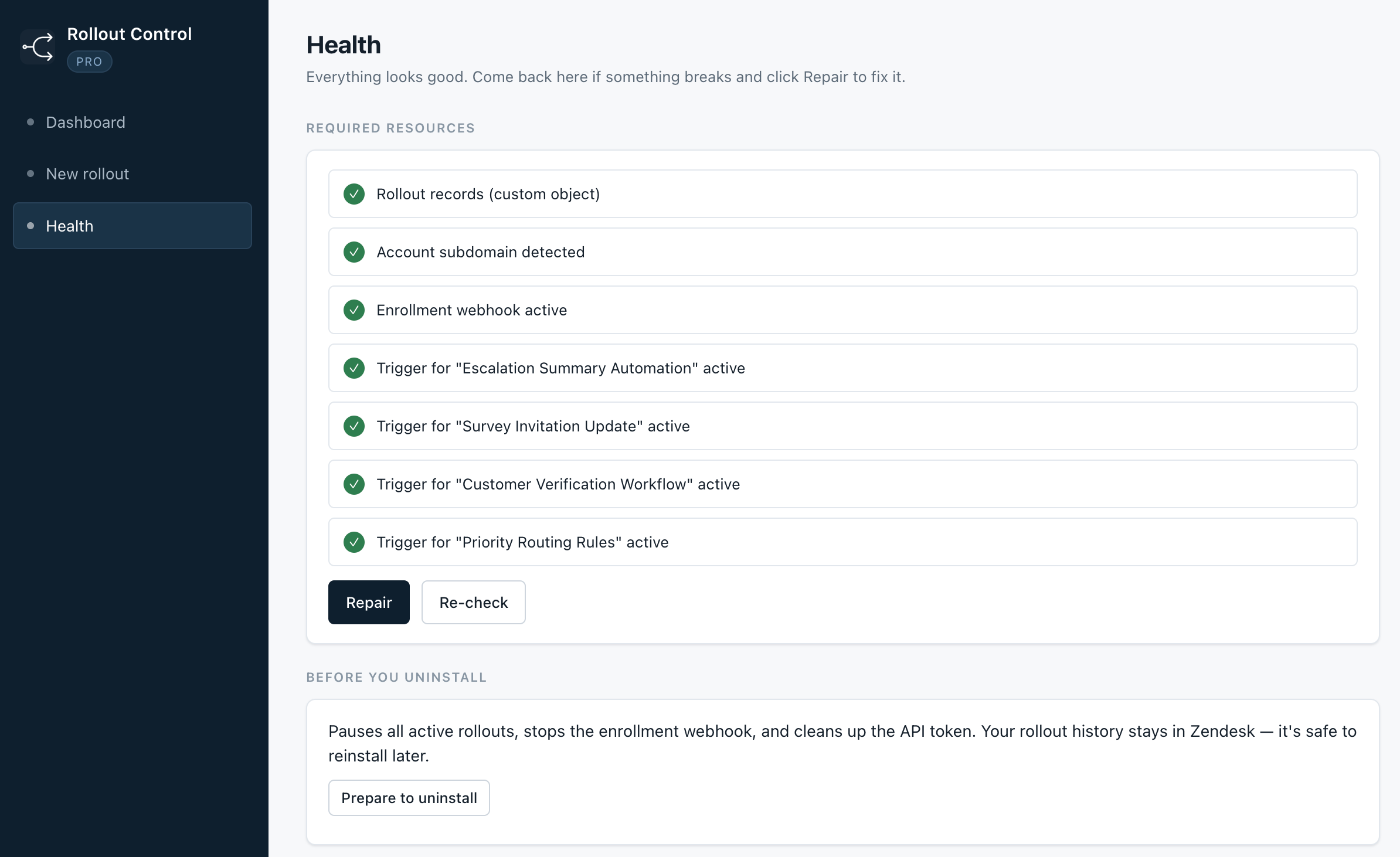
- Open the Health screen, click Connect, and approve access in Zendesk.
- Confirm the required resources are available.
- Create your first rollout as a draft.
- Review the rollout name, split, labels, and eligibility rules.
- Publish when you are ready for new matching tickets to enroll.
Creating a rollout
A rollout is one workflow change you want to test. Give it a name your team will recognize later in reporting, then label the current experience and the new experience.
Rollout name
Use a plain name that describes the change, such as New Intake Flow, Updated Routing Logic, or New Escalation Process.
Control and treatment labels
Control is the current workflow. Treatment is the new workflow. These labels should be short and easy for your team to understand.
Split
The split controls how many new eligible tickets enter treatment. Free supports a 50/50 split. Pro supports 10/90, 25/75, 50/50, 75/25, 90/10, and 100% treatment.
Eligibility filters
Eligibility filters keep a rollout focused. You can limit enrollment by brand, group, form, channel, required tags, or excluded tags.

Publishing and enrollment
When a rollout is published, Rollout Control creates the Zendesk trigger and webhook needed to enroll new eligible tickets. Once active, matching tickets are automatically tagged when they are created.
Each enrolled ticket gets the general enrollment tag, a rollout-specific tag based on the rollout name, and one assignment tag for either control or treatment.
Managing rollouts
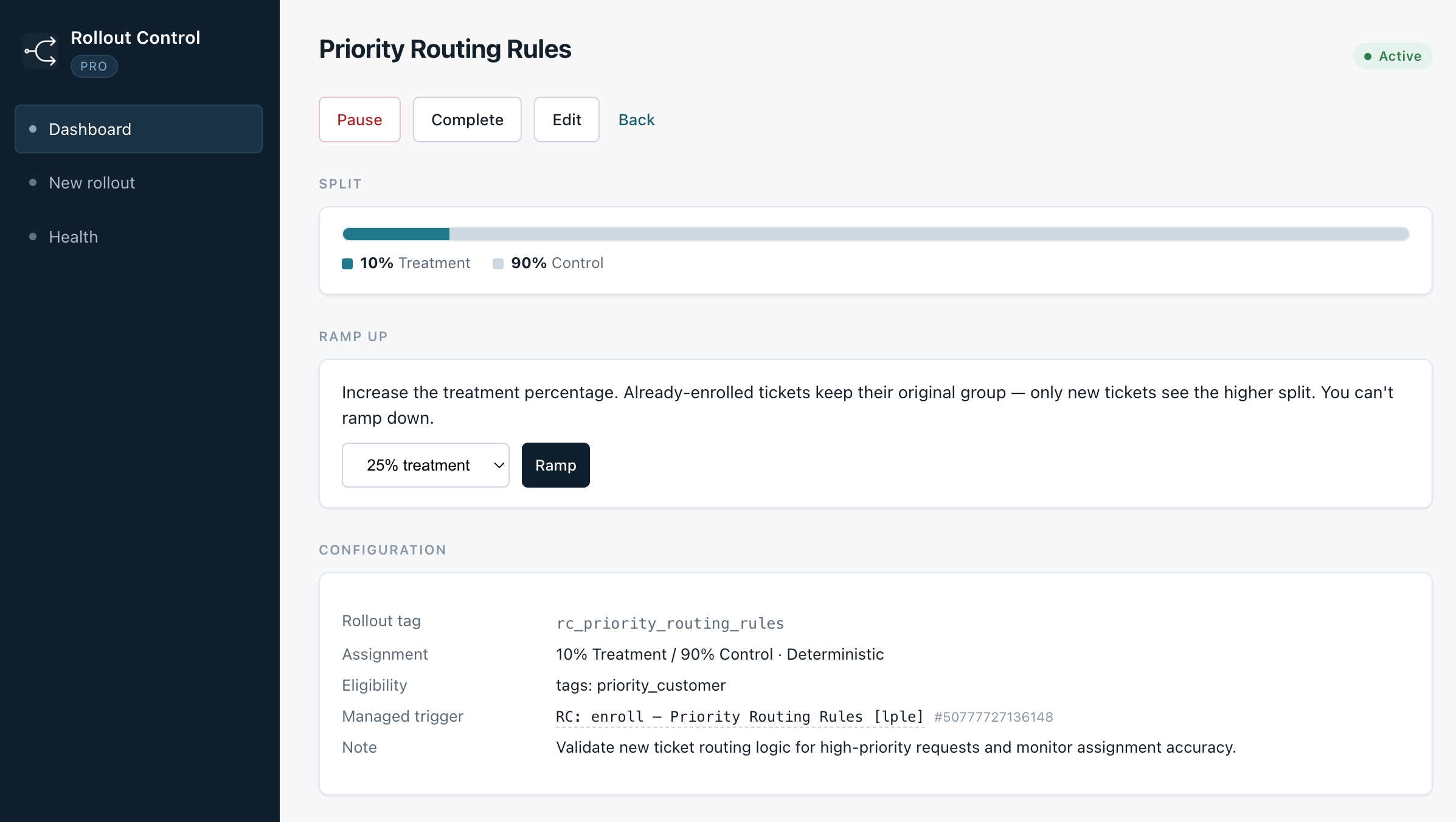
Pause
Pausing a rollout stops new tickets from entering. Tickets that were already enrolled keep their existing rollout tags and group assignment.
Resume
Resuming a paused rollout allows new eligible tickets to enter again using the current split.
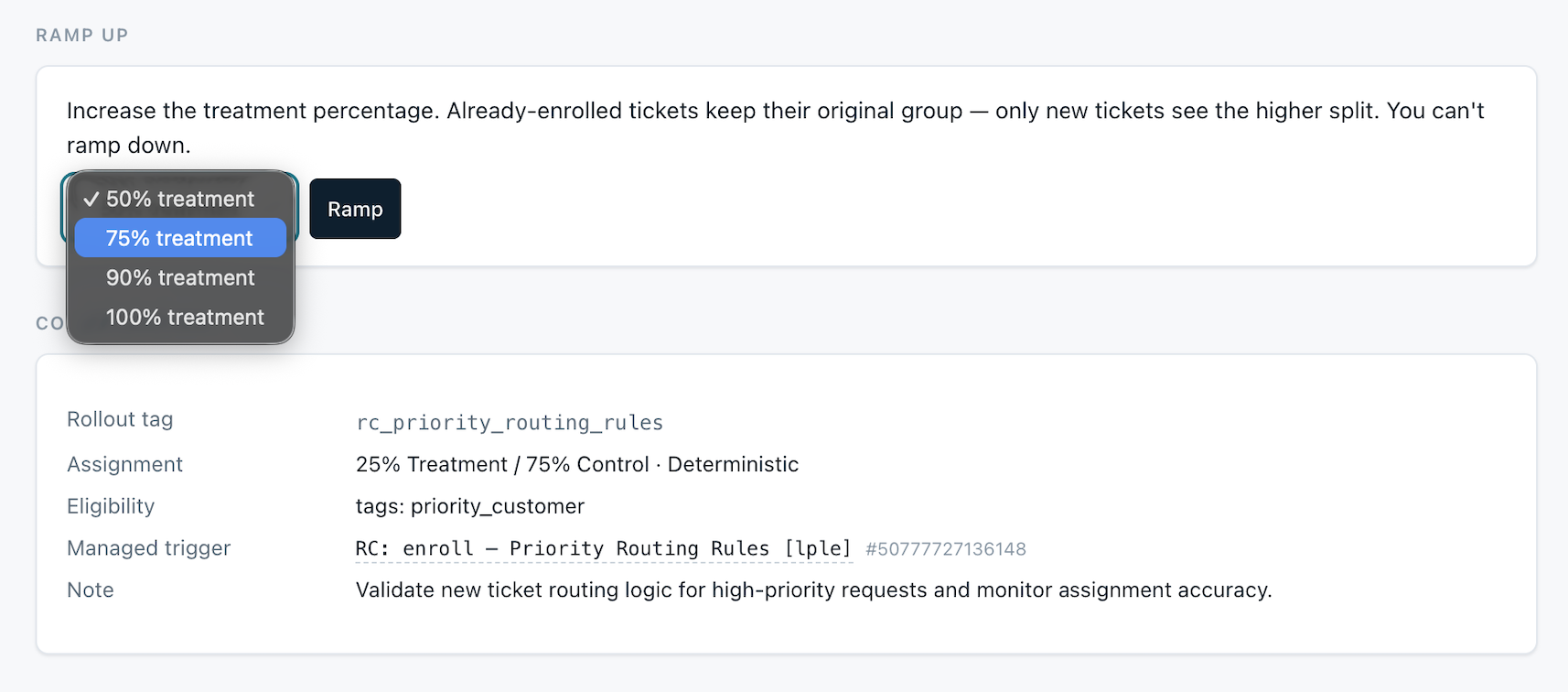
Ramp up
Pro lets you increase the treatment percentage after a rollout is already active. Already-enrolled tickets keep their original group. Only new eligible tickets see the higher treatment percentage.
Complete
Completing a rollout ends it and keeps it available for reference.
Reading results in Explore or analytics
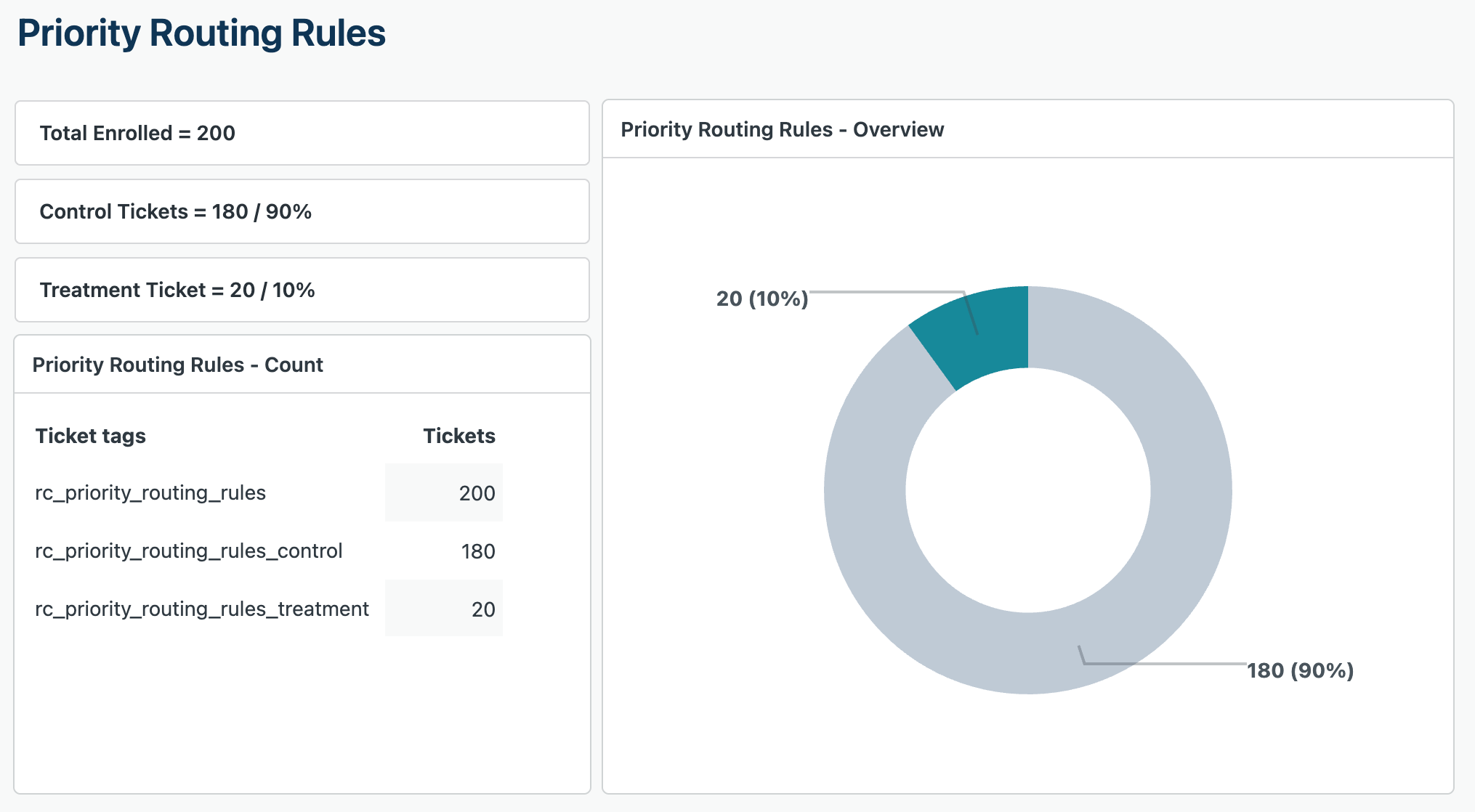
Rollout Control gives you tags you can copy and paste into Zendesk Explore or other analytics tools. Use those tags to compare tickets in the treatment group against tickets in the control group.
| Tag | What it means |
|---|---|
| rc_enrolled | Any ticket enrolled in any Rollout Control rollout. |
| rc_new_intake_flow | Tickets enrolled in this specific rollout. |
| rc_new_intake_flow_treatment | Tickets assigned to the treatment group. |
| rc_new_intake_flow_control | Tickets assigned to the control group. |
Running multiple rollouts
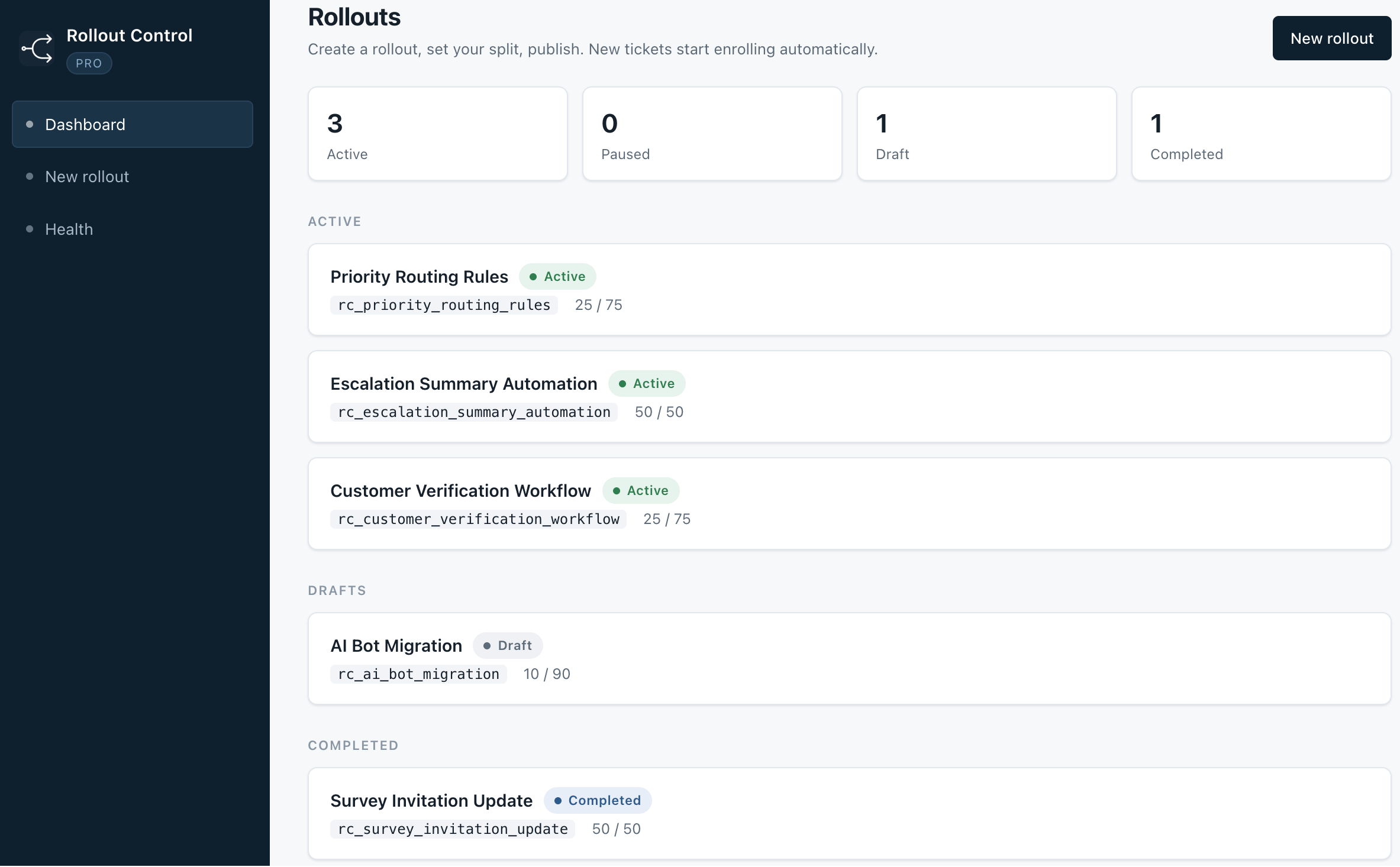
Pro supports multiple active rollouts. Each rollout uses its own rollout-specific tags, so one ticket can be enrolled in more than one rollout without the tags conflicting.
Uninstalling
Rollout Control includes a Prepare to Uninstall flow from the Health screen. Use it before uninstalling the app from Zendesk.
Prepare to Uninstall pauses active rollouts, stops the enrollment webhook, and disconnects the app from your Zendesk account. Rollout history stays in Zendesk, so it is safe to reinstall later.
Reinstalling
Rollout records are stored in Zendesk custom objects. If you reinstall Rollout Control later, the app can reconnect to the rollout history that remains in your Zendesk account.
After reinstalling, open the Health screen and run a check. If anything needs to be repaired, use the Repair option.
Plans
| Feature | Free | Pro |
|---|---|---|
| Price | $0 | $49.99/month |
| Active rollouts | 1 active rollout | Unlimited rollouts |
| Split | 50/50 only | 10/90, 25/75, 50/50, 75/25, 90/10, 100% |
| Ramp-up | Not included | Included |
| Eligibility filters | Basic | Included |
| Pause, resume, complete | Included | Included |
| Health checks | Included | Included |
| Prepare to uninstall | Included | Included |
FAQ
Does it work with any Zendesk plan?
Rollout Control depends on Zendesk app, trigger, webhook, and custom object capabilities. Some Zendesk plan limits may affect what the app can create or manage.
Will enrolled tickets lose their existing tags?
No. Rollout Control adds its own rollout tags. It does not remove the tags already on the ticket.
Can I run more than one rollout at a time?
Yes, Pro supports multiple active rollouts. Each rollout uses its own tags, so the reporting stays separated.
What happens if I pause a rollout?
New tickets stop entering that rollout. Tickets that were already enrolled keep their existing tags and group assignment.
What happens if I uninstall the app while rollouts are active?
Use Prepare to Uninstall first. It pauses active rollouts, stops the enrollment webhook, and disconnects the app from your Zendesk account before you remove the app.
What is the difference between Free and Pro?
Free supports one active rollout with a 50/50 split. Pro adds unlimited rollouts, flexible percentages, ramp-up, and eligibility controls.
What is the difference between pausing and completing a rollout?
Pause is temporary and can be resumed later. Complete means the rollout is finished and kept for reference.
What if I reinstall - do I lose my rollout history?
No. Rollout history is stored in Zendesk custom objects. After reinstalling, open Health and run a check so the app can reconnect.